When you want to allow a visitor to download a file, you use the same system as for linking to pages, but rather than the URL of a page, you enter the URL of a file. Primarily this is a file on your own website. It can also be used to link to a file on a third party website or service, such as Dropbox or Google Drive, providing that the file has been made public.
1 – Click on the media link in the menu on the left, and click Add New
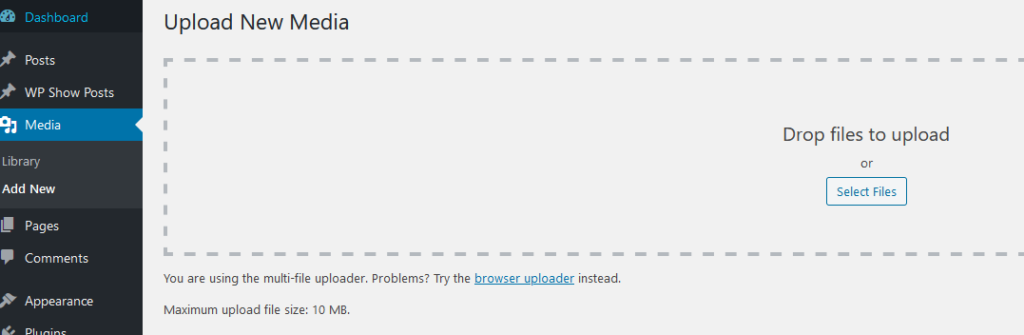
2 – Click Select Files, browse your computer to find the file, and then upload. Once the file is uploaded you will see and edit media, followed by the file title. On the right is the file location URL. Either highlight the text or click the copy URL button.
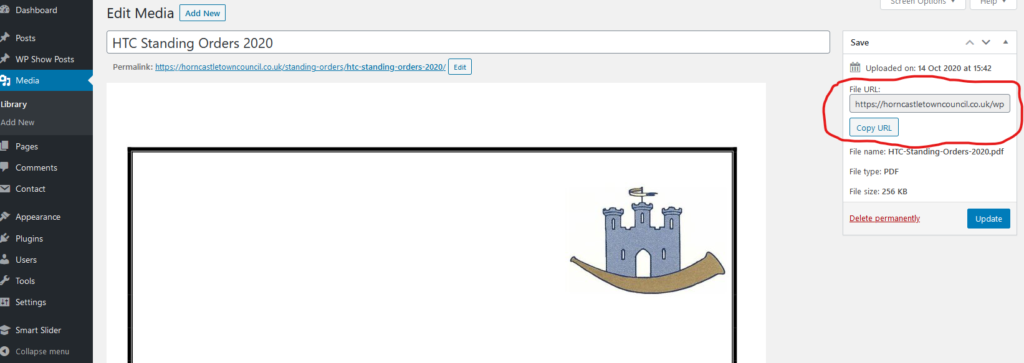
3 – paste the URL into your text link/button toolbar and click enter.
If the file has been uploaded previously, rather than clicking Add New, you would just browse the media library until you find the file that you need.
If you find that a file will not upload, then you will need to contact the website administrator, as certain file types might be blocked, for security reasons.
When creating a post where the primary purpose is to provide access to a file, it is a good idea to write a short introduction, so that the visitor can be certain of what they are supposed to be downloading. For example if the file is a PDF of the minutes of a meeting, then perhaps
Below is a button link to the minutes of the Horncastle Town Council meeting, which was held via Zoom, on the 10th September 2020.
The points discussed inlcuded……
would be a good summary?