Quite often when writing a post, you will want to link to another page, either on your own website or on a third party website.
Linking to a page using text
1 – choose a location within your post, for the link.
2 – open a new tab in your browser and ensure that the link you are targetting is working.

3 – highlight and copy the URL in the browser address bar.
4 – highlight the text that will be the link, and click on the link icon in the menu bar –
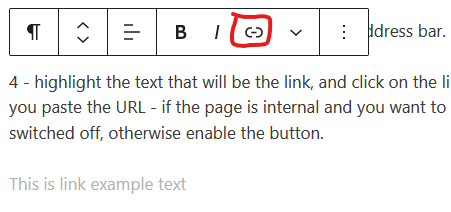
this brings up a small box into which you paste the URL –
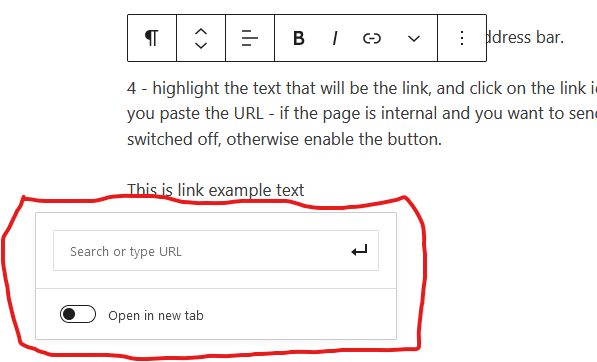
if the page is internal and you want to send the visitor there, then leave the ‘open in a new tab’ switched off, otherwise enable the button.
This is link example text
5 – click the small enter symbol.
When altering a link in a block of text, it is quite often easier to delete the text link, re-type in the text and then apply the new link, following the steps above.
Linking to a page using a button
1 – choose a location within your post, for the button
2 – click on the + symbol to add a block

2 – Choose the button block – if you can see any block labeled button, click browse all, and scroll to Design and click Buttons
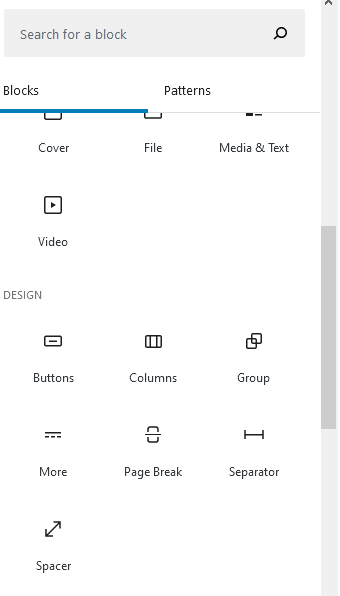
3 – Add some text, click the link icon in the toolbar, and paste the URL into the space, and either enable or leave disabled the open in a new tab switch.
There are some extra options that appear on the right, which allow you to change the style and colour of the button and text. For example, the border radius option allows you to round the ends of the button – 0 is square, 20 is rounded.